Markdown-Import
The script automatically imports and transforms a Markdown text into a styled InDesign document, ready for layout. It replaces Markdown tags with the corresponding paragraph and character styles, and converts Markdown footnotes into actual InDesign footnotes.
Overview
 Editors often have to deeply clean Word files delivered by authors or translators. Despite a visually clean appearance, these documents hide many structural issues (manual bold, uncontrolled line breaks, inconsistent styles) that complicate layout preparation.
Markdown offers a clear and reliable solution to the structural issues of documents: by making each text element visible and explicit, it imposes a beneficial discipline, secures the editorial workflow, and allows for clean, simple, and sustainable content.
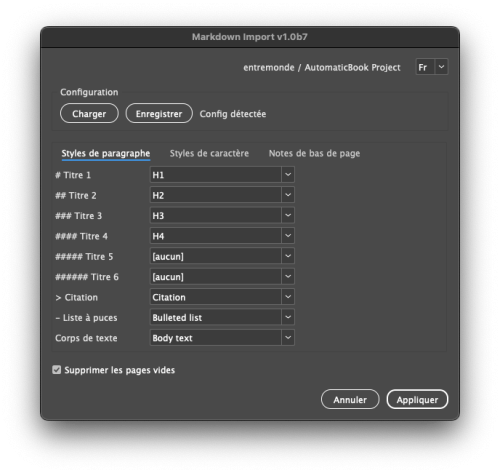
Markdown-Import was designed as a key tool to bridge structured Markdown texts with layout in InDesign. This script transforms Markdown into a .indd document, respecting the organization of the text and automatically applying the typographic styles defined in the layout. When running the script, the user can define the correspondence between Markdown tags (#, >, *italic*, [^note]) and the paragraph or character styles used in the document, and save this mapping.
It provides a reliable bridge between the raw world of structured text (Markdown) and the refined world of professional layout (InDesign), without the editor needing to go through tedious conversion steps. Usage is simple: open a .indd, select or identify the target text frame, run the script, check the mapping if needed, and get in seconds a clean, styled text ready for fine proofreading and final layout.
Features
Full Markdown Conversion
- Headings and structure: converts Markdown headings (# to ######) to matching paragraph styles
- Text formatting: applies bold, italic, and bold-italic combinations
- Special elements: converts bullet lists, blockquotes, small caps, etc.
- Footnotes: transforms [^id] references and definitions into real InDesign footnotes
Intuitive User Interface
- Main tabbed window to easily select corresponding styles
- Three tabs: Paragraph Styles, Character Styles, Footnotes
- Bilingual interface (French/English) with automatic InDesign language detection
Advanced Configuration Handling
- Save/load style mapping configurations
- Automatic detection of config files in the document folder
- Silent mode: for automatic execution without interface, place a `.mdconfig` file in a “config” subfolder within the folder containing your .indd files
Additional Features
- Option to remove empty pages at the end of the document
- Typographic cleanup (double spaces, extra returns, dashes)
- Detailed progress bar to follow the conversion process
Installation and Usage
Installation
Place `Markdown-Import.jsx` in your InDesign Scripts panel (Window > Utilities > Scripts > User).
Basic Usage
- Open an InDesign document
- Select the text frame containing your Markdown (or create a frame with the label “contenu” or “content”)
- Run the script by double-clicking it in the Scripts panel
- Map Markdown elements to your InDesign styles
- Click “Apply”
Advanced Configuration
- Save config: Use the “Save” button to store your style mapping
- Auto-loading: Place a `.mdconfig` file in the same folder as your document
- Silent mode: For automatic execution, place a `.mdconfig` file in a folder named `config`
Technical Workflow
Target Text Selection
The script searches for the text to convert in this order:
- Currently selected text frame
- Frame labeled “contenu” or “content”
- First story in the document
Smart Style Matching
The script attempts to automatically match existing InDesign styles with Markdown elements based on common French and English naming conventions, such as:
- “Heading 1”/“Titre 1” for `#` (level 1)
- “Bold”/“Gras” for `bold text`
- “Blockquote”/“Citation” for `> quote`
Markdown Transformation
Conversion happens in several steps:
1. Reset existing styles
2. Apply paragraph styles (headings, lists, quotes)
3. Apply character styles (bold, italic, etc.)
4. Convert footnotes
5. Typographic cleanup and improvement
Multilingual Support
The script is fully localized in English and French, with:
- Translated user interface
- Automatic detection of InDesign language
- Manual language switch available
Workflow Integration
For automated use cases:
- Silent mode can be triggered via arguments or config detection
- Error logging for debugging
- Compatible with production environments
Compatibility
- InDesign CS6 and later
- Windows and macOS systems
- Works with both single-page and facing-page documents
Troubleshooting
- If no style is applied, check that your document contains paragraph and character styles
- If footnote errors occur, make sure [^id] references exactly match their definitions
- For complex documents, try applying the script to one story at a time